
Adding contacts one at a time is handy when you only need to add a few. If you have a larger list, a CSV import will save you time — see our imports guide.
How to add contacts one-by-one
Step 1: Create the contact
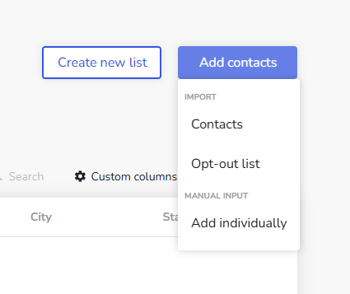
Go to Contacts in the top navigation, then click Add contacts followed by Add individually. A panel opens on the right where you can enter the contact's details. Fill in the information you have for them.
Need a field Mobiz doesn't show by default? You can add custom fields — see our Creating custom columns article.
Step 2: Add them to a list (optional)
Select any list(s) you'd like to add the contact to. If you haven't set up any lists yet, learn how in Creating lists and assigning contacts.
Note: Before you save, an SMS may be sent to the contact to obtain their marketing consent. Click View SMS to preview the opt-in confirmation message they'll receive. This ensures you have the right permission to communicate and market to them — learn more in Understanding contact permissions.
Step 3: Save the contact
When you're ready, click Save — or select Save and add another if you'd like to keep adding contacts.