Personalization is one of Mobiz's most powerful features and a great way to strengthen your campaigns. It lets you insert customer-specific information into your messages, creating a tailored experience that builds stronger customer relationships.
In this article:
Adding default values
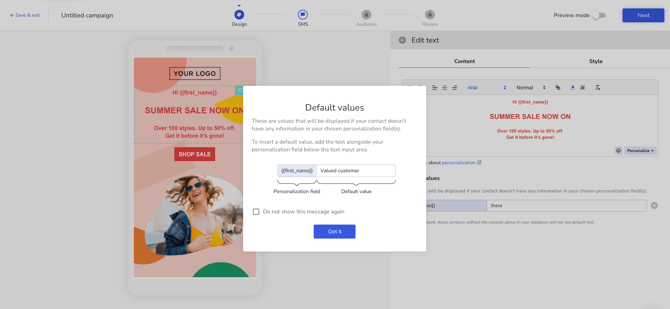
Default values act as fallbacks for when a contact doesn't have data in a personalization field.
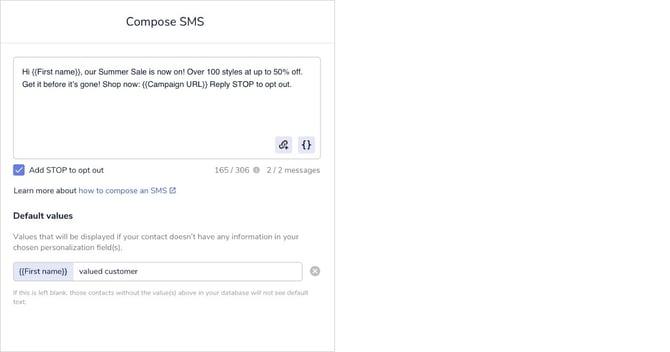
For example, if you use and a contact hasn't provided theirs, you can set a default like "guest" or "valued customer":
-
A contact with a name sees: Hi Sarah
-
A contact without one sees: Hi guest or Hi valued customer
If no default value is set, that part of the message appears blank for contacts without data.
Pro tip: Default values also work in conditional personalization — here's how.
Where to use personalization in Mobiz
You can add personalization at two key points in the campaign process:
-
Design stage
-
Message stage
Design stage
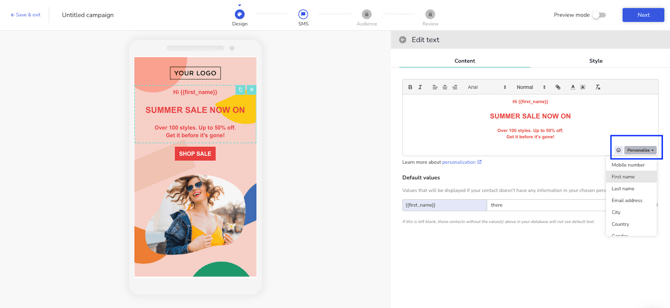
You can add personalization to Text and Button elements.
-
Select a Text or Button element from the Elements panel on the right, or click it directly in the campaign preview.
-
Click "Personalize" in the editing area.
-
Choose your personalization tag(s), set a default value if needed, then keep editing or add more tags.
Message stage
Personalizing your message copy is highly effective — it's your first point of contact and can significantly boost clicks to your campaign URL.
-
In the Compose SMS area, click "Personalize".
-
Choose your personalization tag(s), set a default value if needed, then keep editing or add more tags.