---
title: Integrating Mobiz and Zapier
description: Integrating Mobiz and Zapier
---
[Skip to content](https://help.getmobiz.com/integrating-mobiz-and-zapier#main-content)
English
Show submenu for translations
[Create a Support Ticket](https://help.getmobiz.com/kb-tickets/new?hsLang=en)

Open main navigation
Close main navigation
- English
Show submenu for translations
- [Create a Support Ticket](https://help.getmobiz.com/kb-tickets/new)
- [Contact us](mailto:help@getmobiz.com)
[Contact us](mailto:help@getmobiz.com)
How can we help you?
- There are no suggestions because the search field is empty.
1. [Mobiz Help Center](https://help.getmobiz.com/?hsLang=en)
2. [Integrations](https://help.getmobiz.com/integrations?hsLang=en)
3. [Zapier](https://help.getmobiz.com/integrations?hsLang=en#zapier)
# Integrating Mobiz and Zapier
## Connect Mobiz to Zapier to automate your workflows across thousands of apps — no code required.
Zapier lets you connect Mobiz to thousands of other apps and automate the tasks that pass between them. Once it's set up, actions like contact updates or unsubscribes sync automatically between your apps, keeping your lists up to date without any manual work. It frees up your time and turns you into a marketing automation whizz — without touching a single line of code.
Below, we'll walk through creating your first Zap (Zapier's term for an automated workflow). In this example, we'll build a Zap that adds or updates new Mobiz contacts in Mailchimp. We've used Mailchimp here, but you can connect any app available on Zapier.
#### **Step 1: Log in to Mobiz**
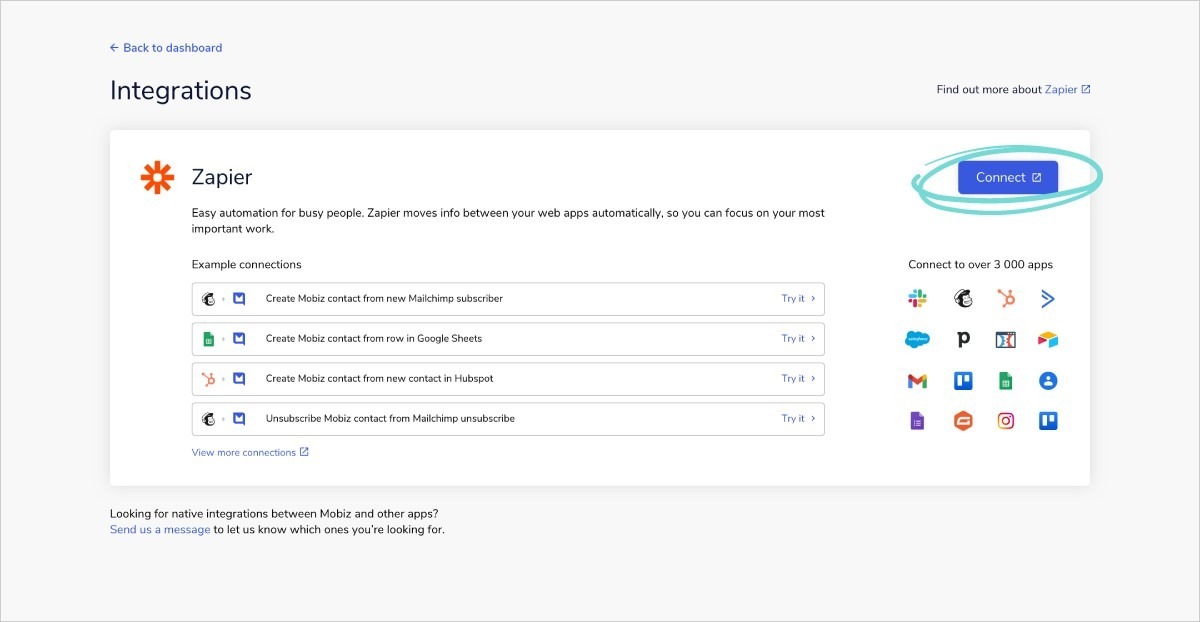
From the Mobiz dashboard, navigate to your profile menu and select I**ntegrations** from the dropdown**.** Once on the Integrations page, click **Connect** to open the Zapier desktop application in a new tab.
[](https://downloads.intercomcdn.com/i/o/448315686/19a1b37bf4f1960cae19b9b3/4ea9dff2-e50a-4410-b2be-09aabafd9b6f?expires=1782825300&signature=2c2c1cf93bc366de3e8b12d352690b7013841ebb2a3eef9dae06153d33a5de66&req=cCQvFch7m4lZFb4f3HP0gC0pVIJVDXUid4a0VJ%2BhxT%2Bf8UZhFjTGmKro1SMy%0AMj7pV1C%2Bvn%2F2l3JvgQ%3D%3D%0A)
#### **Step 2: Log in to Zapier**
In the new tab, log in to Zapier using your Zapier account details or [sign up](https://zapier.com/l/home) for a new Zapier account.
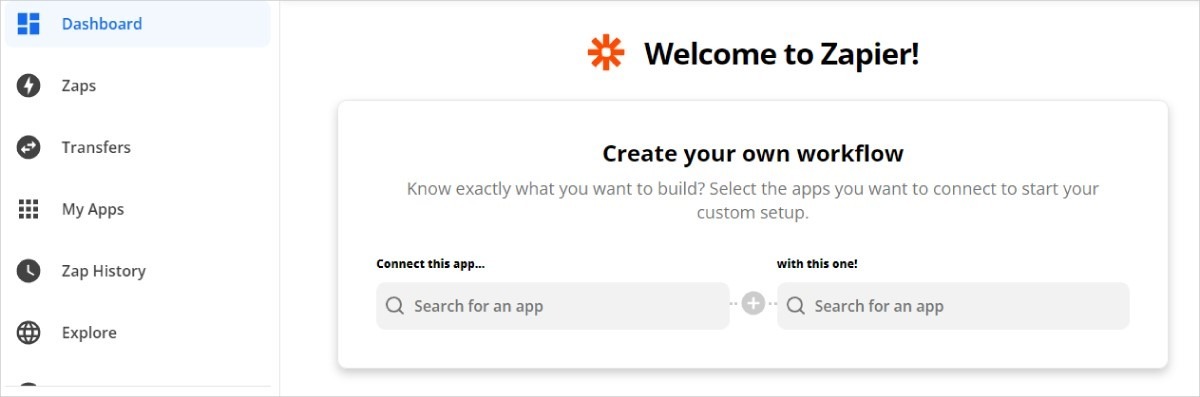
From here, the easiest way to set up your Mobiz integration is to use the***Create your own workflow*** tool on the Zapier homepage.
**Top tip:** Visit *[this page](https://zapier.com/apps/mobiz-sms/integrations)* for suggested app integrations and popular ways to use Mobiz SMS workflows.
[](https://downloads.intercomcdn.com/i/o/448315688/836e538cdad12943f3fa519e/d433eafa-d9d9-4c82-9bde-7eaf20be965f?expires=1782825300&signature=e293f2e060a2cdc7f655e0c82d0cb7bbf92a0a3a65c7f28fbbd82e8b7f287401&req=cCQvFch7m4lXFb4f3HP0gBt27bXN6FEKMO0K1IUGpMyKY5iCZrBpN22SMKv8%0AzZ3w93ZEfuRCWsQR4w%3D%3D%0A)
#### **Step 3: Select Mobiz and choose the app you’d like to connect with**
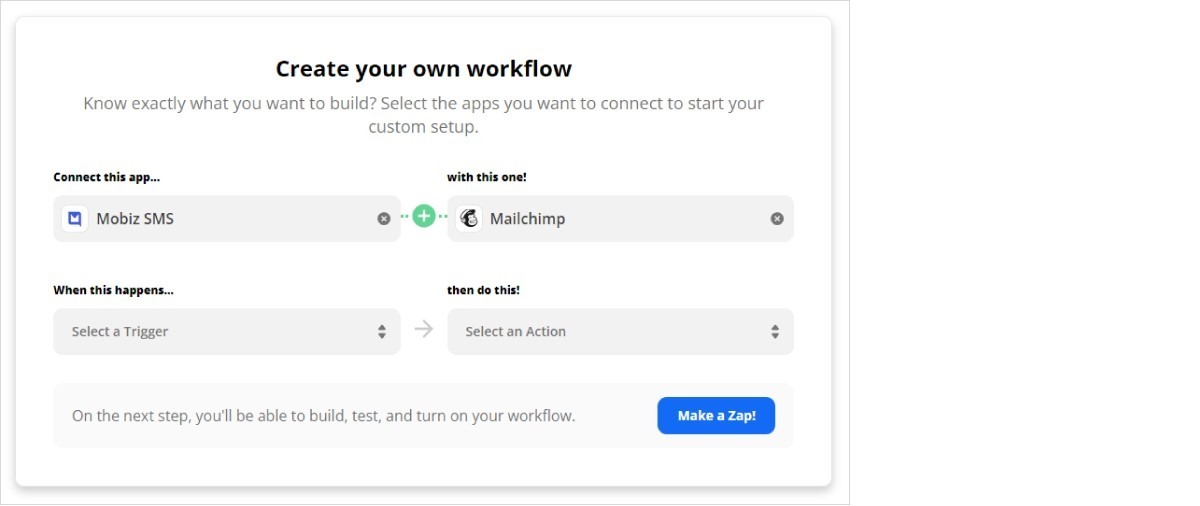
From the Zapier home page ([dashboard](https://zapier.com/app/dashboard)), simply type “**Mobiz SMS”** into the***Connect this app*** search bar and select Mobiz SMS from the dropdown options.
Then, type the name of the app you’d like Mobiz to connect with in the “with this one!” field. Select the name when it appears in the dropdown. We’ve used Mailchimp in the example, but you can connect to any app you’d like.
[](https://downloads.intercomcdn.com/i/o/448315680/258dd2b8f137fbdb2daced00/46e08ed1-5109-4c43-ad49-cf64ac5a5e49?expires=1782825300&signature=0b793840fdddcd050a5efe5248cb3fbbf4aaad0e9e0fa1cc54f0c75b1c47d04d&req=cCQvFch7m4lfFb4f3HP0gLA3A%2Fe4jmNqKkIdMXuTAO%2FTdsV5dV1RY7eBNw9E%0AzMdDzorNynOa6fJN%2Bw%3D%3D%0A)
#### **Step 4: Select a trigger event**
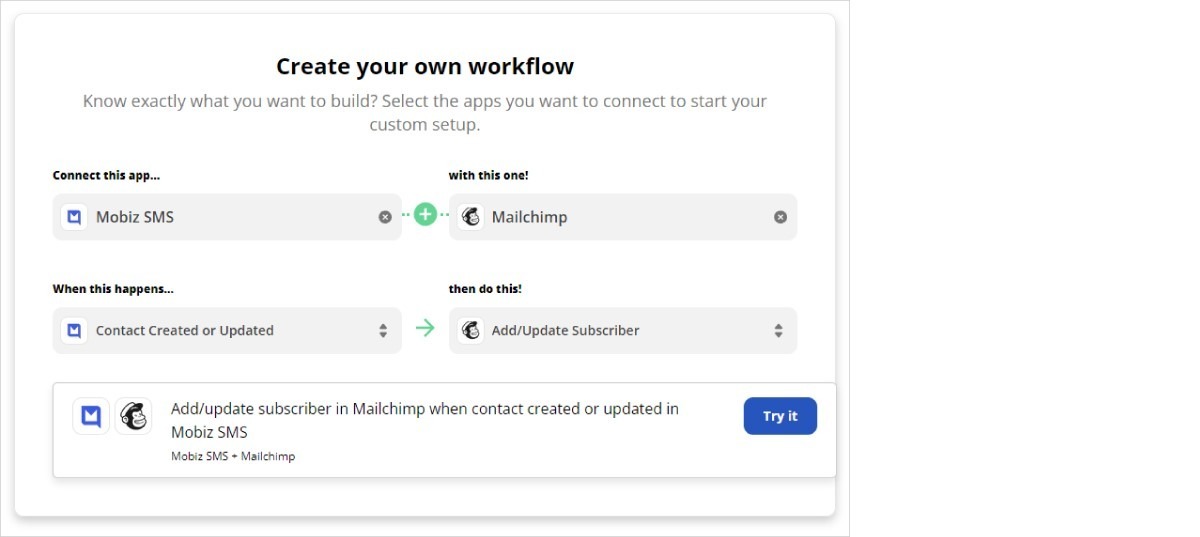
A trigger is an event that needs to happen in order for the zap to activate. In this case, we'll select ***Contact Created or Updated*** from the dropdown menu.
Now select the desired action from the ***Then do this!*** dropdown menu. Just as with triggers, each app has a list of pre-determined actions that you can choose from (or you can create your own workflow).
In the example below, we’ve used the***Contact Created or Updated*** as the trigger in a Zapier workflow to allow for the action ***Add/Update Subscriber*** in Mailchimp, meaning every new or updated contact in Mobiz will automatically be updated in your Mailchimp list.
Once selected, click ***Try it*** to move to the next section.
[](https://downloads.intercomcdn.com/i/o/448315679/86fdb20d17a01a928f932428/cfe5e064-52ba-4cf2-beea-bd05817fdb1e?expires=1782825300&signature=7504007aa77646b95ec12b5a60fc788cffa791d9b4b0bb65afdb0cc5b0020917&req=cCQvFch7m4ZWFb4f3HP0gOgDRK4nP3U5x6doHAUiOuP5yOwNBRBqimngxgvq%0AUdGCh0niGejOMSiD0Q%3D%3D%0A)
#### **Step 5: Choose your account**
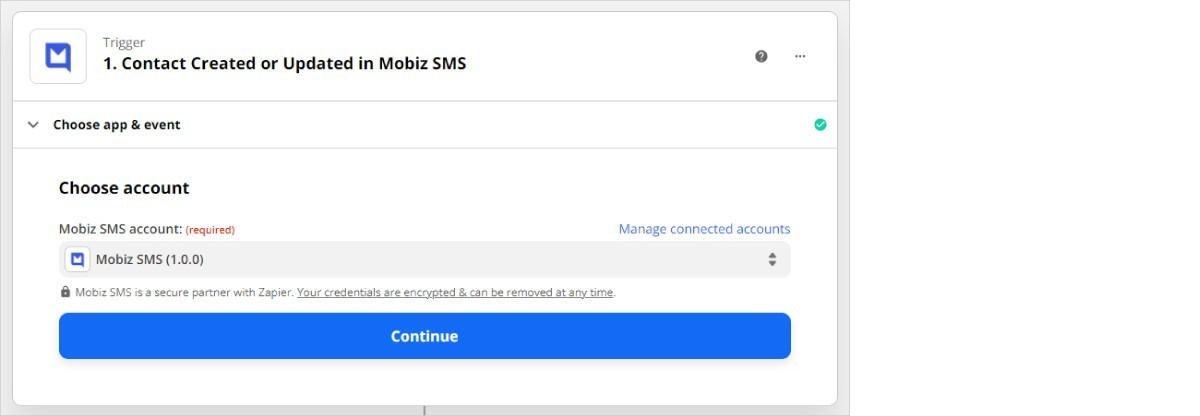
Click the dropdown menu to select your Mobiz Account. If you haven’t connected your Mobiz account to Zapier yet, select the ***Create new account*** button.
Follow the instructions on the new window that opens to authenticate your Mobiz login. If you have not signed in to Mobiz, then Zapier will open a pop-up, asking you to sign in (if you have not signed up for Mobiz yet, the pop-up will also give you the opportunity to do so).
Once complete, hit ***Continue*.**
[](https://downloads.intercomcdn.com/i/o/448315682/22e23a9cee72522fb76a5ba9/ce7498ea-1c2a-484e-a29c-6c18c85c3bd8?expires=1782825300&signature=f6b369a9a7e989c07338678985661582dae85ecc2643000cbd776d831dee952d&req=cCQvFch7m4ldFb4f3HP0gEwWOgmjzVUaoxnPJCgBU3nm9hLa%2FzyPm5cNrH7N%0AxyZ4c29EkzglbmHoSw%3D%3D%0A)
#### **Step 6: Test your trigger**
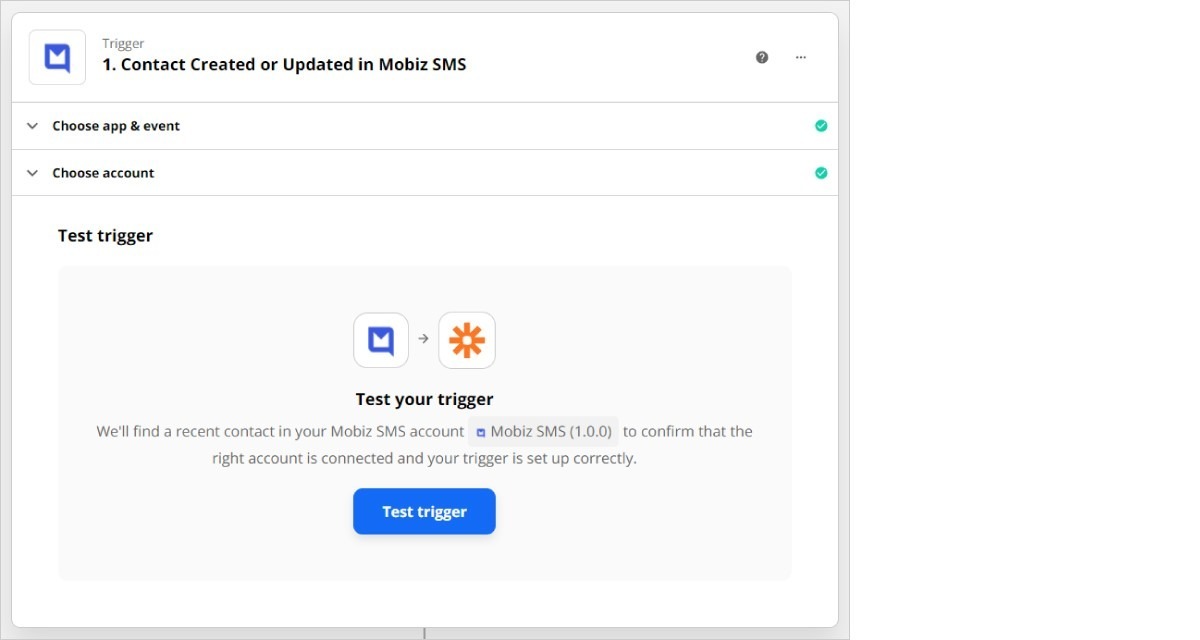
On the next screen, you'll be prompted to test your Zap. This step ensures everything is working as intended and confirms your account is connected.
Select ***Test trigger*** to continue.
[](https://downloads.intercomcdn.com/i/o/448315681/6df76677940187cefd80e471/c72fef72-96c7-4028-ba7a-8620ec1c8d8f?expires=1782825300&signature=1224a129f2abf81cb404074f4a5274117502a9e05dc194652716f4f3abd8a4e1&req=cCQvFch7m4leFb4f3HP0gG28VZtcQu7J9vZOplQ6Sex1zJp%2B3P9JnjNzxnTM%0AED5FcZykMijSTej%2FMw%3D%3D%0A)
#### **Step 7: Choose an action to take place**
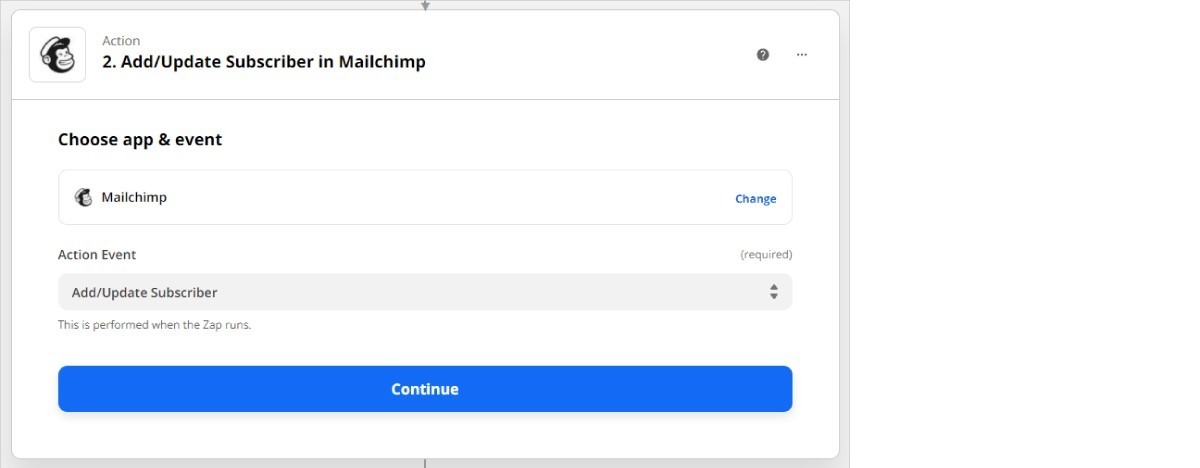
This defines what you want your Zap to do within Mobiz when it actions. In our example, we wanted Mailchimp to **Add/Update Subscriber** within their platform.
To do this, type in the app you’d like to connect with Mobiz (we selected Mailchimp). Then select the correct action you’d like to see performed by your connected app, by choosing from the list in the dropdown menu.
Click **Continue** to go to the next step.
[](https://downloads.intercomcdn.com/i/o/448315683/2d92cd1772b3d015b3338585/723b67b8-61e6-4427-a18a-43488cdf82aa?expires=1782825300&signature=5e5b39b408182d07364c952574c2ab408ada3c0521a079a57ef3be1c89a6ff1d&req=cCQvFch7m4lcFb4f3HP0gG4b9JNIzbHDSHTsNirKCdGJndAJDtJp5szknRQY%0Aa58OCs9RSE5V7aC9kg%3D%3D%0A)
#### **Step 8: Choose your account**
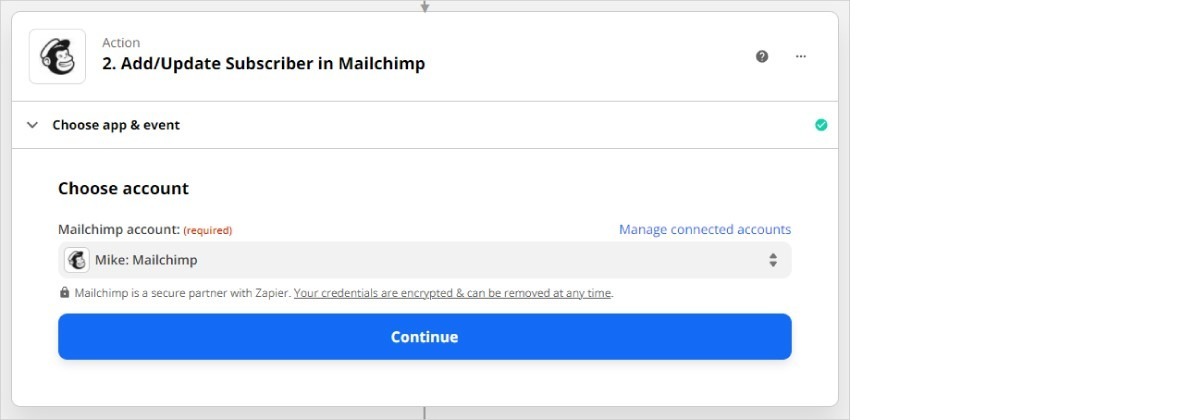
Click the dropdown menu to select your chosen account. Revisit **Step 5** for more details on connecting a new account.
Once complete, hit ***Continue*.**
[](https://downloads.intercomcdn.com/i/o/448315684/d38438da3f902f62d00ee50c/41bc80ee-e979-4330-bf83-9a73f7d7d52c?expires=1782825300&signature=3ed96b4c9ec86947288791adbd900502233190ebb6c4707eb42d8d0c50afcf74&req=cCQvFch7m4lbFb4f3HP0gIi4u%2FKOns6R%2FS3qh6d%2BVZae76xjf96NrAPF7EHL%0A%2FuvgvCFr6aFvLNlImw%3D%3D%0A)
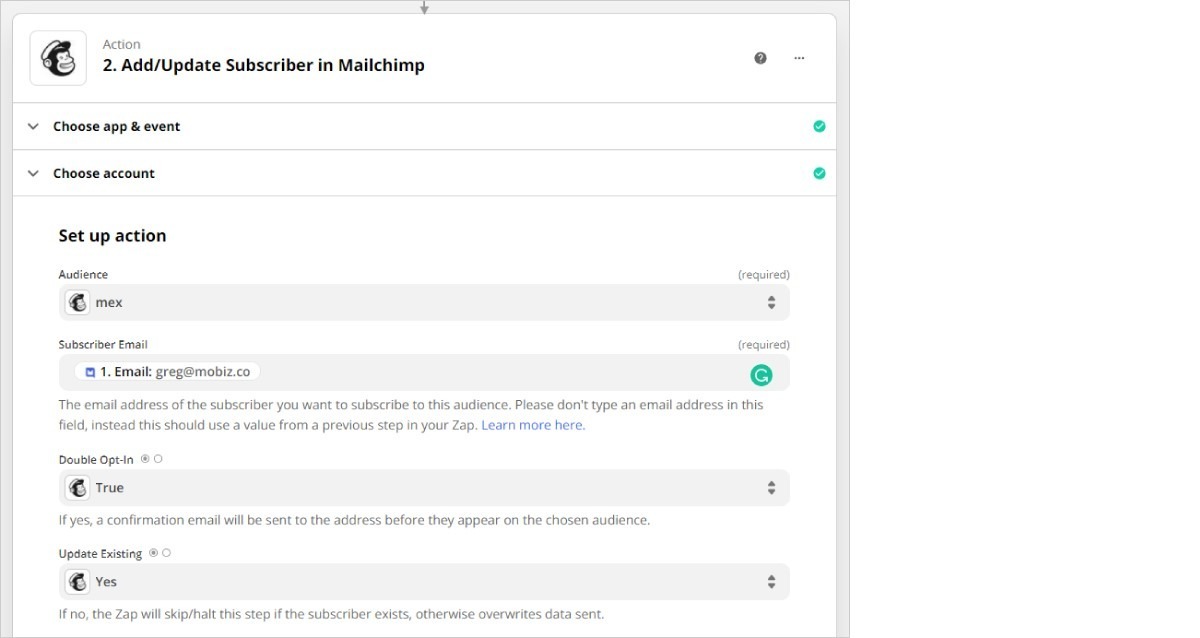
#### **Step 9: Fill out the template**
This is where you tie everything together and show Zapier what information it should pass between Mobiz and your chosen app, in this case, Mailchimp.
Choose the audience list you want to update or add your new contacts to, and complete any other empty fields that require your input.
[](https://downloads.intercomcdn.com/i/o/448315689/0975ea335130a6b019f58f74/c04bd794-b3de-416a-bd93-4826b4ffd27e?expires=1782825300&signature=937515b7586ac7ead7a840d025996f7827b9aaf4c91173237c465a0d4b8dc0cf&req=cCQvFch7m4lWFb4f3HP0gCnmsZzksp%2Fk0bMt1r45ZXGs4ZGI4R7pKHWQw8Wl%0AsZUJl7MlxakIjxxP%2FQ%3D%3D%0A)
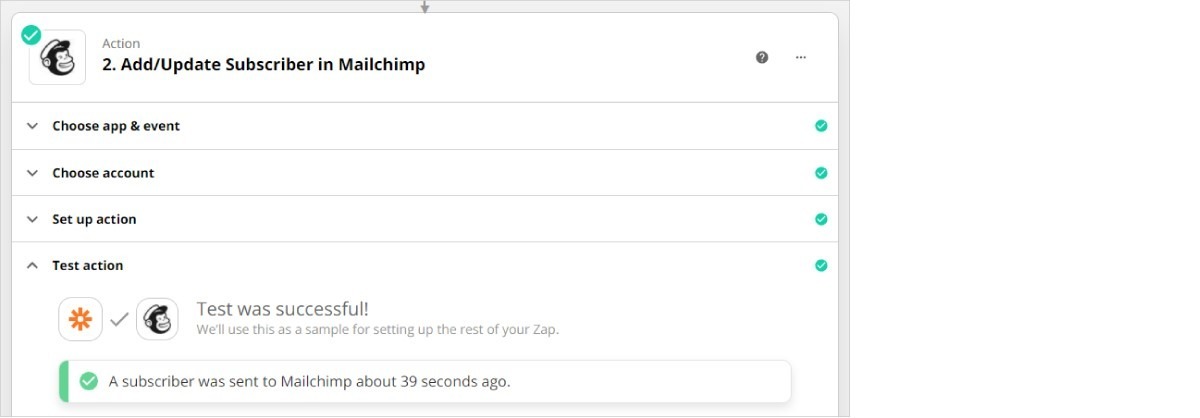
#### **Step 10: Test your Zap**
This step ensures everything is working as intended and confirms your account is connected. If your test was successful, you’ll be notified in the alert box.
[](https://downloads.intercomcdn.com/i/o/448315685/1a1f21f379a3eaea180d37ae/b17123ad-2ad4-41ca-8829-f14d85b5c3d3?expires=1782825300&signature=e5a56e31daf512654b8f0b011a7282c0b60abd6b6e7c172720a9ccecf66b40ab&req=cCQvFch7m4laFb4f3HP0gLiqWiB82m8DPNGKwi6Qa%2FkLd1pmPxlYHZjOwqP5%0AE3I56yK1IdiTlyytFQ%3D%3D%0A)
#### **Step 11: Turn your Zap on**
Once you've successfully tested your Zap, turn it on, by selecting the toggle switch!
[](https://downloads.intercomcdn.com/i/o/448315690/18a5c4eba4430012d915b875/efe9578f-573f-409c-a261-eb4384024310?expires=1782825300&signature=d448a01d77541bcf34bd6fe14243718280ed945c79e84c43aaa60fd98b92b5aa&req=cCQvFch7m4hfFb4f3HP0gHVz2hWenz2Q96Os7fHjFq8V8AKF6qQUnopvW0xI%0AIN%2BL0uBcItoEnaWz%2Fg%3D%3D%0A)
#### **Step 12: Pat yourself on the back (optional)**
There's no need to really do this, you can play it cool too. Just know we're super excited that you made your first Zap. 🙂
- [Getting started with Mobiz](https://help.getmobiz.com/getting-started-with-mobiz?hsLang=en#main-content)
- [1. Sign up](https://help.getmobiz.com/getting-started-with-mobiz?hsLang=en#1-sign-up)
- [2. Pick a number type & get verified](https://help.getmobiz.com/getting-started-with-mobiz?hsLang=en#2-pick-a-number-type-get-verified)
- [3. Setup your branded link](https://help.getmobiz.com/getting-started-with-mobiz?hsLang=en#3-setup-your-branded-link)
- [4. Import your existing contacts & grow your list](https://help.getmobiz.com/getting-started-with-mobiz?hsLang=en#4-import-your-existing-contacts-grow-your-list)
- [5. Send Campaigns](https://help.getmobiz.com/getting-started-with-mobiz?hsLang=en#5-send-campaigns)
- [Mobiz tutorials](https://help.getmobiz.com/mobiz-tutorials?hsLang=en)
- [Using Mobiz](https://help.getmobiz.com/using-mobiz?hsLang=en#main-content)
- [Contacts & Lists](https://help.getmobiz.com/using-mobiz?hsLang=en#contacts-lists)
- [Campaigns](https://help.getmobiz.com/using-mobiz?hsLang=en#campaigns)
- [Personalized landing pages](https://help.getmobiz.com/personalized-landing-pages?hsLang=en)
- [Compliance](https://help.getmobiz.com/compliance?hsLang=en)
- [Integrations](https://help.getmobiz.com/integrations?hsLang=en#main-content)
- [Hubspot](https://help.getmobiz.com/integrations?hsLang=en#hubspot)
- [HighLevel](https://help.getmobiz.com/integrations?hsLang=en#highlevel)
- [Zapier](https://help.getmobiz.com/integrations?hsLang=en#zapier)
[](http://mobiz.co)
Copyright © 2026, Mobiz