---
title: Integrating HighLevel and Mobiz
description: Learn how to integrate Mobiz with HighLevel to send messages, manage conversations, and ensure compliance - all within one platform.
---
[Skip to content](https://help.getmobiz.com/integrating-highlevel-and-mobiz-mobiz-help-center#main-content)
English
Show submenu for translations
[Create a Support Ticket](https://help.getmobiz.com/kb-tickets/new?hsLang=en)

Open main navigation
Close main navigation
- English
Show submenu for translations
- [Create a Support Ticket](https://help.getmobiz.com/kb-tickets/new)
- [Contact us](mailto:help@getmobiz.com)
[Contact us](mailto:help@getmobiz.com)
How can we help you?
- There are no suggestions because the search field is empty.
1. [Mobiz Help Center](https://help.getmobiz.com/?hsLang=en)
2. [Integrations](https://help.getmobiz.com/integrations?hsLang=en)
3. [HighLevel](https://help.getmobiz.com/integrations?hsLang=en#highlevel)
# Integrating HighLevel and Mobiz
## Learn how to integrate Mobiz with HighLevel to send messages, manage conversations, and ensure compliance - all within one platform.
### Integrating Mobiz with HighLevel simplifies your messaging and customer communication. This guide will walk you through the steps to seamlessly connect the two platforms and start sending SMS or MMS messages right from HighLevel.
**What's in this article?**
1. [Reason to integrate Mobiz with HighLevel](https://u.getmobiz.com/en/integrating-highlevel-and-mobiz-mobiz-help-center?hsLang=en#h_7380028d3f)
2. [Installing Mobiz within HighLevel](https://u.getmobiz.com/en/integrating-highlevel-and-mobiz-mobiz-help-center?hsLang=en#h_63c494f485)
3. [Using Mobiz in HighLevel](https://u.getmobiz.com/en/integrating-highlevel-and-mobiz-mobiz-help-center?hsLang=en#h_f361a4fb15)
### **Why integrate Mobiz with HighLevel?**
Integrating the Mobiz app with your HighLevel agency account allows you to:
- **Send SMS and MMS messages** directly from HighLevel.
- **Manage inbound and outbound conversations** with your customers.
- **Ensure compliance** with automated opt-out handling.
- **Streamline customer communication** within the HighLevel platform.
Before installing the Mobiz App, ensure you have received a phone number from Mobiz. This is required to send messages through the integration.
### Installing the Mobiz app in HighLevel
Follow these steps to install the Mobiz app onto your HighLevel agency account and set it up for sending messages:
**1. Access your HighLevel account**
Log into your HighLevel account and ensure you are on the agency dashboard ([https://app.gohighlevel.com/agency\_dashboard/](https://app.gohighlevel.com/agency_dashboard/)).
**2. Find Mobiz App in the App Marketplace**
Follow this link to navigate to the **Mobiz App** installation page in the **App Marketplace**: [https://app.gohighlevel.com/integration/678790a04939f7516c78d268](https://app.gohighlevel.com/integration/678790a04939f7516c78d268)
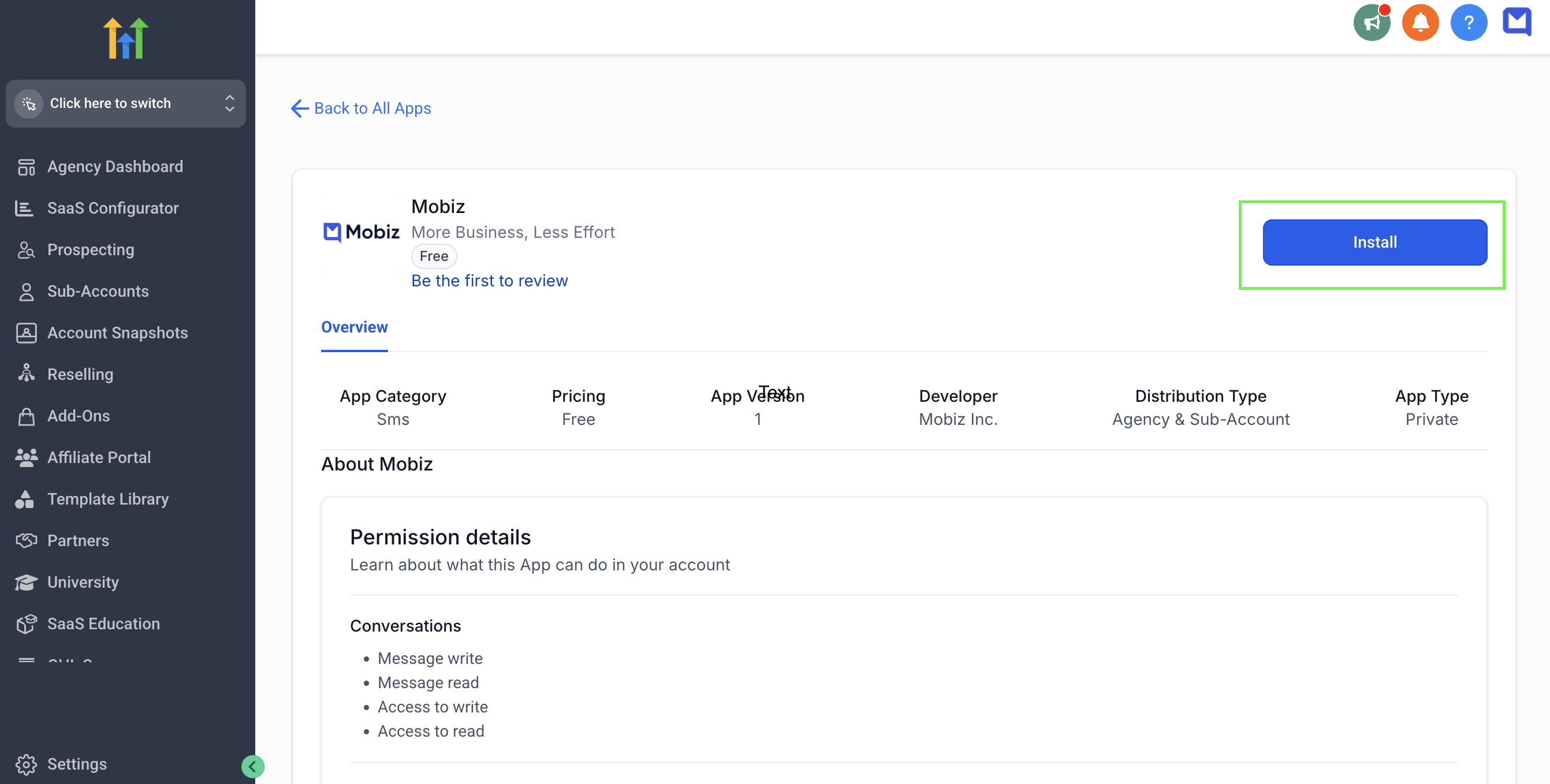
**3. Install the Mobiz app**
- Click the blue **Install** button in the top-right corner.
- The installation process will begin.
[](https://downloads.intercomcdn.com/i/o/ny7pgmwv/1397289080/7b46c04219a32e1eda811a373fa0/Install+1.png?expires=1782825300&signature=8962dbe9c11fc65058802ed1025fc349cf7fd22a21280ccb5ef77d007e6a7428&req=dSMuEct2lIFXWfMW1HO4zZasjSJ8nvYU5aHBUp3VUHTO87prgoS0jDH72hH5%0ATb1Wu%2FvIOTYP5pW7GwQ%3D%0A)
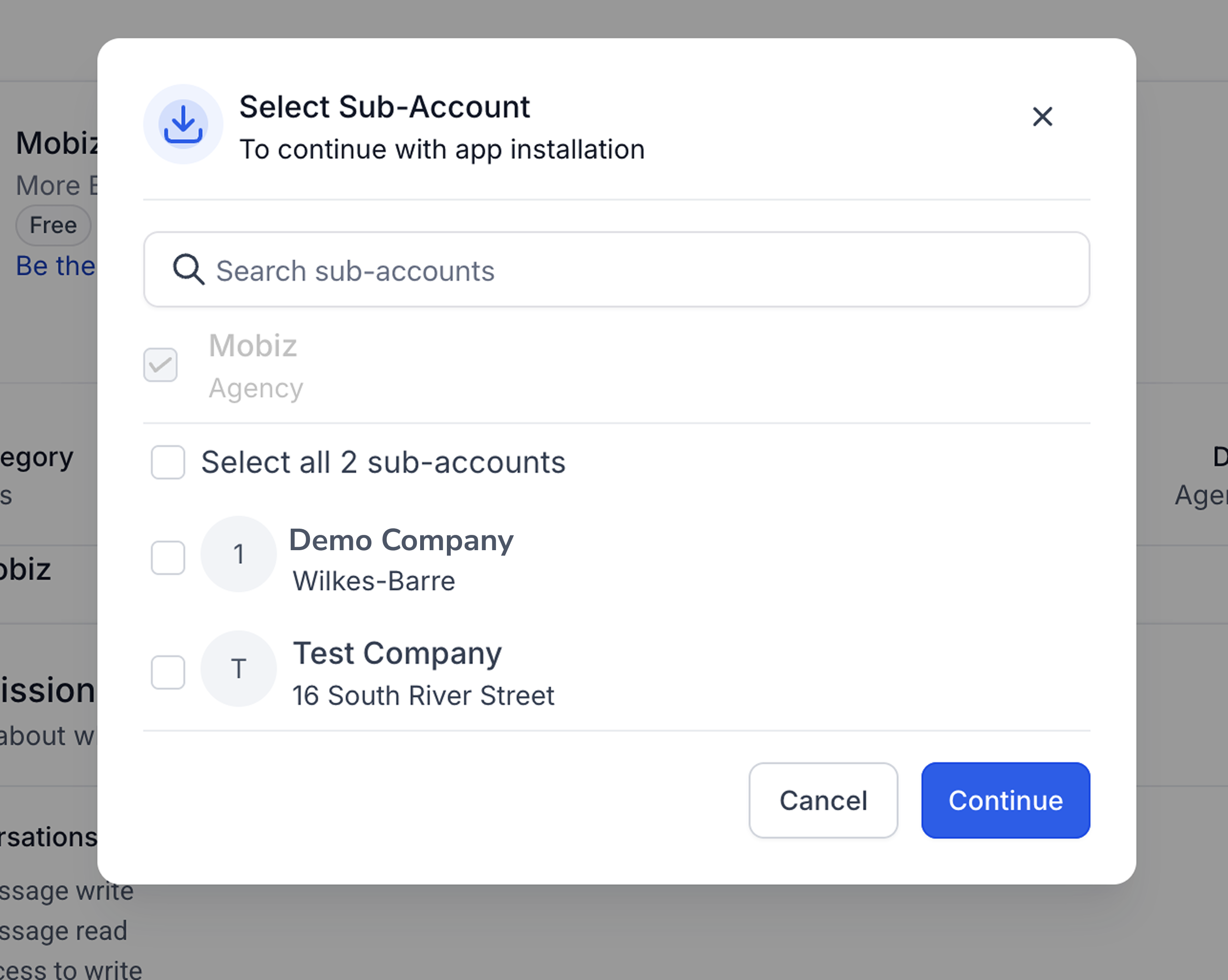
**4. Select a sub-account for installation**
- Select a sub-account where you want to install the Mobiz app.
- Click **Continue.**
**Note**: At the moment, Mobiz supports only single sub-account setup.
[](https://downloads.intercomcdn.com/i/o/ny7pgmwv/1467063863/8efc73ab0f9d2b2453a68ba17583/Highlevel+install.png?expires=1782825300&signature=80a357519613d45b7a8a8a2378a34207e924939068c145c90eb9a6cf17c04d0a&req=dSQhEcl4nolZWvMW1HO4zXrVPi6qciUBsAe4Y887tDhZaD%2Fz%2BKcXOr8a0FKE%0AORDA679ryYkf6UxsSMg%3D%0A)
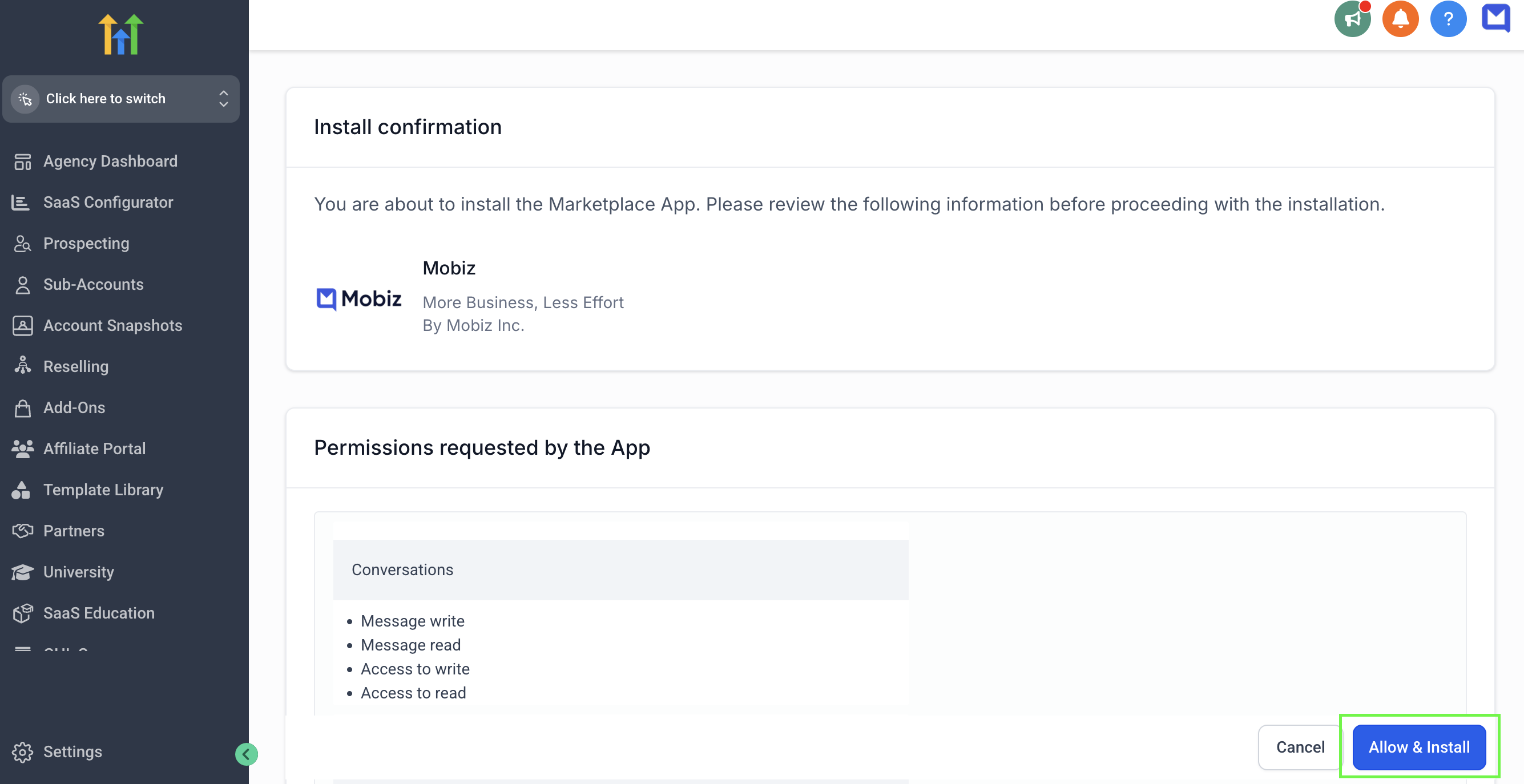
**5. Grant permission to install**
Click the **Allow and Install** button at the bottom-right corner to grant permissions.
[](https://downloads.intercomcdn.com/i/o/ny7pgmwv/1397289629/96066d19afc298b1135da16659f7/Install+3.png?expires=1782825300&signature=95319ddf1d53c1f9876bb6bf68765226f3eed5b5377a8c004d7476aa7ff7949a&req=dSMuEct2lIddUPMW1HO4zbCcgXlKYkg4zuEUfOz0XeamfGoOw07wd9QlAViW%0AEfw9qi4Groqly5b%2FJ64%3D%0A)
**6. Confirm installation success**
Once successfully installed, a confirmation message will appear with details like:
This will open in a new tab, go back to the HighLevel tab which will show the Mobiz integration installed within the App Marketplace.
**7. Setup confirmation**
Once you install the app, our team will be notified and will do the final setup. This usually doesn't take longer than 2 hours. You will receive a confirmation message once your account is fully set up.
You can always contact your account manager or our customer support for clarification.
### Using the integration: Sending a message via Mobiz within HighLevel
Navigate to the sub-account you selected when installing Mobiz.
**1. Create a message**
- Select **Conversations** on the left-hand side.
- In the Conversations section, click on **Create New Message** (this is an icon next to the search bar and filter icon).
- Choose **Direct Message** then search for and select a contact to message.
- Click **Continue.**
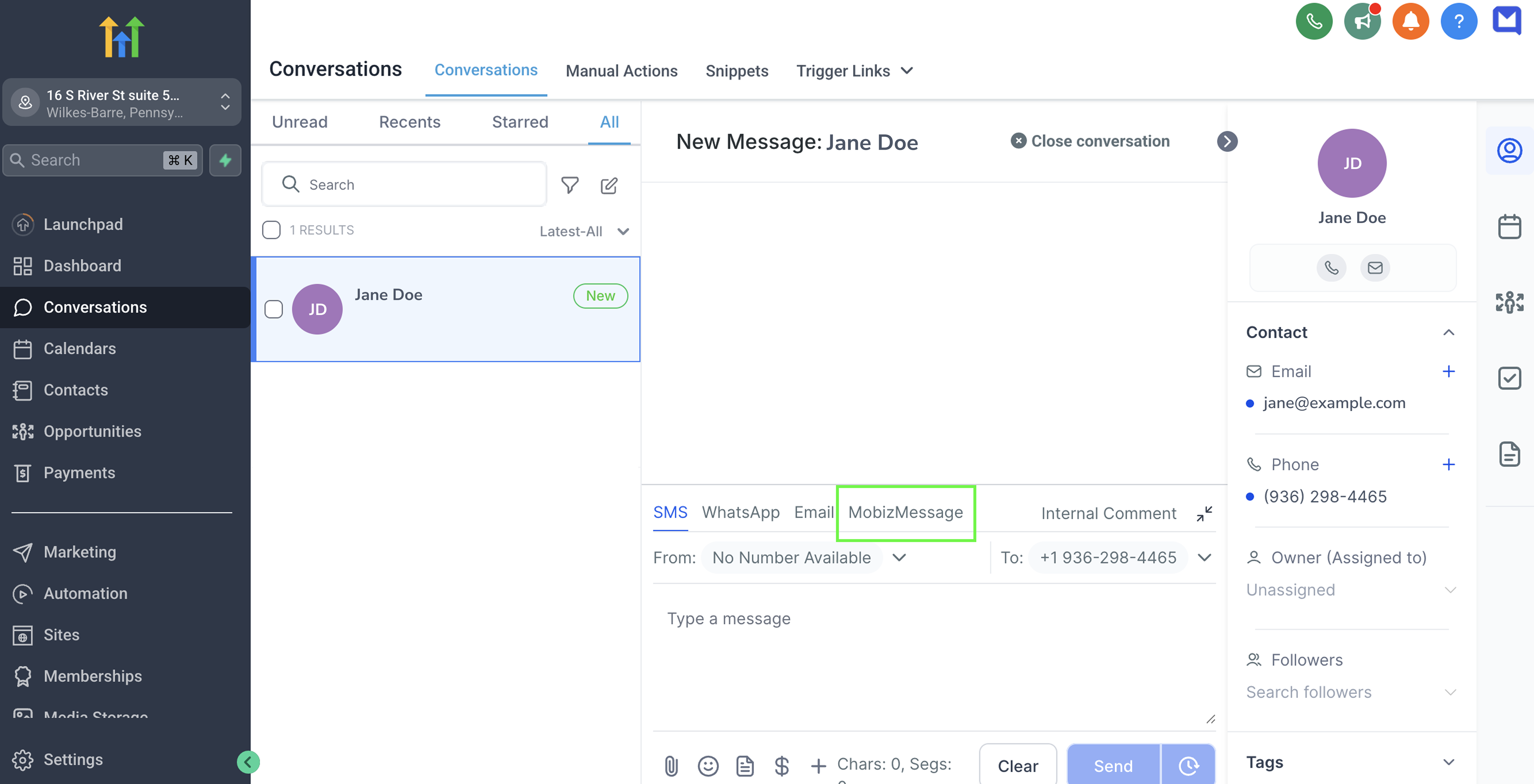
**2. Select MobizMessage**
- In the conversation inbox, a **MobizMessage** tab will appear alongside SMS and WhatsApp.
- Select the **MobizMessage** tab.
[](https://downloads.intercomcdn.com/i/o/ny7pgmwv/1467056861/f09916dcc6f1495c58ab01c0f192/Highlevel-mobiz+message.png?expires=1782825300&signature=50ad7723e2beb89b885009d5c4682b5995ed7c2e6819366bdf18aeb236bb0931&req=dSQhEcl7m4lZWPMW1HO4zTAsCCZWkTXTkQzREKtXzqooDFhAxAD3m%2BDbq1On%0AVXHVcWuHSlLF77UZnq8%3D%0A)
**3. Compose and send your message**
- Type the message you wish to send to the contact.
- Click **send** once you're satisfied.
**Message delivery and responses**
- The message will be sent via Mobiz to the contact’s mobile number.
- All sent messages and replies will be visible in the **HighLevel Conversations** tab.
**Compliance message management**
- If a contact replies **"STOP"**, Mobiz will automatically unsubscribe them. When a contact is unsubscribed, you will not be able to send any future messages to them.
- The contact will be updated in HighLevel to reflect DND text messages as ON.
- A compliance message will be sent confirming the opt-out. The message looks like this : You are now unsubscribed and will no longer receive messages. Reply START to resubscribe.
Congratulations! You've successfully installed the Mobiz app and learned how to send your first message. Now, you're all set to streamline communication, enhance customer engagement, and manage messaging effortlessly - right from one platform. Happy messaging!
- [Getting started with Mobiz](https://help.getmobiz.com/getting-started-with-mobiz?hsLang=en#main-content)
- [1. Sign up](https://help.getmobiz.com/getting-started-with-mobiz?hsLang=en#1-sign-up)
- [2. Pick a number type & get verified](https://help.getmobiz.com/getting-started-with-mobiz?hsLang=en#2-pick-a-number-type-get-verified)
- [3. Setup your branded link](https://help.getmobiz.com/getting-started-with-mobiz?hsLang=en#3-setup-your-branded-link)
- [4. Import your existing contacts & grow your list](https://help.getmobiz.com/getting-started-with-mobiz?hsLang=en#4-import-your-existing-contacts-grow-your-list)
- [5. Send Campaigns](https://help.getmobiz.com/getting-started-with-mobiz?hsLang=en#5-send-campaigns)
- [Mobiz tutorials](https://help.getmobiz.com/mobiz-tutorials?hsLang=en)
- [Using Mobiz](https://help.getmobiz.com/using-mobiz?hsLang=en#main-content)
- [Contacts & Lists](https://help.getmobiz.com/using-mobiz?hsLang=en#contacts-lists)
- [Campaigns](https://help.getmobiz.com/using-mobiz?hsLang=en#campaigns)
- [Personalized landing pages](https://help.getmobiz.com/personalized-landing-pages?hsLang=en)
- [Compliance](https://help.getmobiz.com/compliance?hsLang=en)
- [Integrations](https://help.getmobiz.com/integrations?hsLang=en#main-content)
- [Hubspot](https://help.getmobiz.com/integrations?hsLang=en#hubspot)
- [HighLevel](https://help.getmobiz.com/integrations?hsLang=en#highlevel)
- [Zapier](https://help.getmobiz.com/integrations?hsLang=en#zapier)
[](http://mobiz.co)
Copyright © 2026, Mobiz