---
title: Creating Text to Join keywords
description: Creating Text to Join keywords
---
[Skip to content](https://help.getmobiz.com/creating-text-to-join-keywords#main-content)
English
Show submenu for translations
[Create a Support Ticket](https://help.getmobiz.com/kb-tickets/new?hsLang=en)

Open main navigation
Close main navigation
- English
Show submenu for translations
- [Create a Support Ticket](https://help.getmobiz.com/kb-tickets/new)
- [Contact us](mailto:help@getmobiz.com)
[Contact us](mailto:help@getmobiz.com)
How can we help you?
- There are no suggestions because the search field is empty.
1. [Mobiz Help Center](https://help.getmobiz.com/?hsLang=en)
2. [Mobiz tutorials](https://help.getmobiz.com/mobiz-tutorials?hsLang=en)
# Creating Text to Join keywords
## How to create a Text to Join keyword to grow your subscriber list — the compliant way.
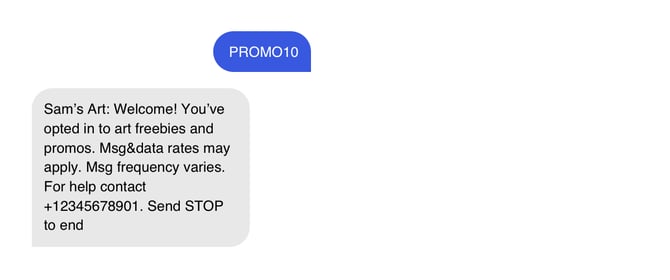
Text to Join makes it easy to grow your mobile subscriber list. It lets customers text a keyword you've chosen to your unique business number to opt in to your database. Set up a keyword, then promote it online or in-store — by displaying the keyword itself, sharing a QR code, or sending a join link.
Growth campaigns like this don't just add contacts to your list — they keep you compliant, because you're only ever adding people who've confirmed they consent to receive your messages.
**In this article:**
1. [Setting up Text to Join keywords](https://help.getmobiz.com/creating-text-to-join-keywords#setting-up-text-to-join-keywords)
2. [Sharing your Text to Join campaign](https://help.getmobiz.com/creating-text-to-join-keywords#sharing-your-text-to-join-campaigns)
3. [Understanding possible errors](https://help.getmobiz.com/creating-text-to-join-keywords#understanding-possible-errors)
### Setting up Text to Join keywords
To get started, click **Growth tools** in the top navigation of your dashboard, then click **Get started**. From there, follow the three steps below.
#### 1. Create your keyword
Enter the unique keyword your customers will text to opt in to your list. We recommend keeping keywords short — they're easier to read and remember, and there's less risk of a customer texting the wrong thing.
A few things to note:
- **Keywords must be unique.** You can't reuse a keyword that already exists on your account. Combining a word with numbers is an easy way to keep it unique — for example, `Promo10`.
- **Keywords can only contain letters (A–Z) and numbers (0–9).** Special characters and emojis aren't supported.
- **Keyword matching isn't case-sensitive.** `Promo10`, `PROMO10`, and `promo10` all work the same way.
- **Some keywords are reserved.** Words like `STOP` can't be used or changed, because the platform relies on them for built-in functions such as opting out ("Text STOP to opt out").

#### 2. Craft a welcome SMS
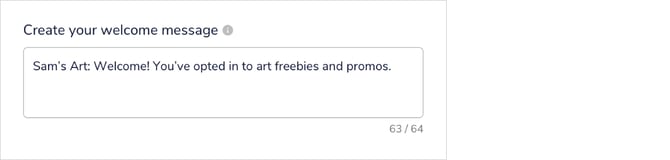
The welcome SMS is sent automatically as soon as a customer texts your keyword to join.
It matters because it confirms to customers that their sign-up worked. It's also a good place to tell them what kind of messages they'll receive, and to spell out any terms and conditions beyond the ones we pre-populate (more on those below).
**Pre-populated terms and conditions**
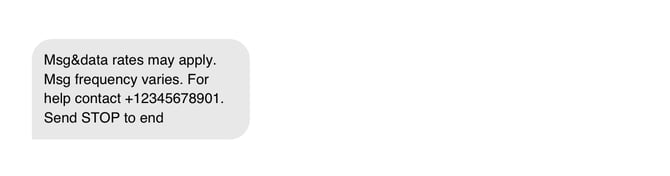
Your welcome message can be up to 600 characters. Keep an eye on the message counter in the bottom-right to see how many message segments it will use. We automatically include the terms and conditions required by law.
These cover:
- a way for customers to opt out of your communications
- a statement of your messaging frequency
- a customer support number (to change this before setting up your keyword, update it on the company details page in account management)
- clear language about any associated fees or charges
#### 3. Choose where to store your subscribers
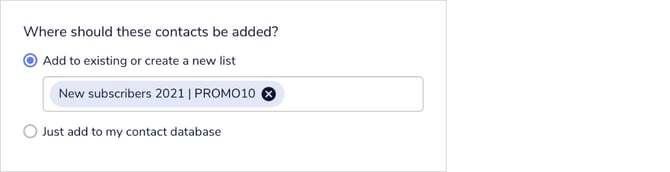
All subscribers are saved to your contact database. This step lets you also organise them into a new or existing list.
You have two options:
- **Add to an existing or new list.** Pick an existing list from the dropdown, or create a new one — choosing to create a new list opens a pop-up where you can set it up. See [Creating lists and assigning contacts](https://u.getmobiz.com/creating-lists-and-assigning-contacts?hsLang=en) to learn more.
- **Just add to my contact database.** If you don't want to sort new subscribers into a list, this adds them straight to your account's contact database.
**Pro tip:** A well-organised database is key to running successful SMS campaigns, so we strongly recommend using lists to keep your data tidy.
When everything's filled in, review your details, check the preview in the renderer, and click **Save** to finish.
### Sharing your Text to Join campaign
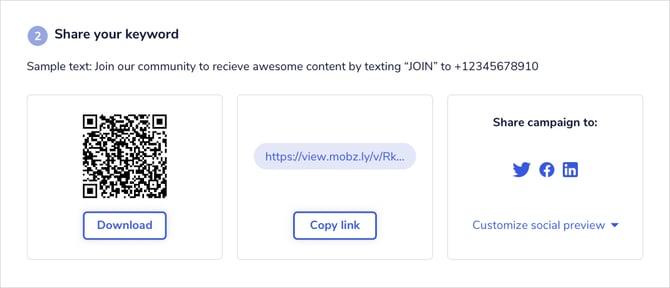
Once your keyword is set up, there are four ways to share it and start growing your list:
- **Display your keyword.** Share your keyword and business number in print, in-store, or online, and let customers text in manually.
- **QR code.** Customers scan a code that pre-fills both the keyword and your business number in their messaging app — all they do is hit send.
- **Join link.** Tapping the link pre-fills the keyword and business number in the customer's messaging app, ready to send.
- **Social sharing.** Share your join link to your social profiles with the built-in sharing feature, including a customisable preview image and copy so it stays on-brand.
**Note:** QR codes and join links are designed for mobile devices. If someone opens one on another device, they'll see the QR code, keyword, and business number instead, so they can still sign up using the display method above.
### Understanding possible errors
**This is a reserved word** — The keyword you entered is already taken or reserved for another purpose, such as resubscribing or support. Choose a different word or code for your customers to use.
**An unexpected error occurred** — This is a system error and usually isn't caused by anything on your end. Refresh the page and try again. If it persists, message our chatbot or email [help@getmobiz.com](mailto:help@getmobiz.com).

- [Getting started with Mobiz](https://help.getmobiz.com/getting-started-with-mobiz?hsLang=en#main-content)
- [1. Sign up](https://help.getmobiz.com/getting-started-with-mobiz?hsLang=en#1-sign-up)
- [2. Pick a number type & get verified](https://help.getmobiz.com/getting-started-with-mobiz?hsLang=en#2-pick-a-number-type-get-verified)
- [3. Setup your branded link](https://help.getmobiz.com/getting-started-with-mobiz?hsLang=en#3-setup-your-branded-link)
- [4. Import your existing contacts & grow your list](https://help.getmobiz.com/getting-started-with-mobiz?hsLang=en#4-import-your-existing-contacts-grow-your-list)
- [5. Send Campaigns](https://help.getmobiz.com/getting-started-with-mobiz?hsLang=en#5-send-campaigns)
- [Mobiz tutorials](https://help.getmobiz.com/mobiz-tutorials?hsLang=en)
- [Using Mobiz](https://help.getmobiz.com/using-mobiz?hsLang=en#main-content)
- [Contacts & Lists](https://help.getmobiz.com/using-mobiz?hsLang=en#contacts-lists)
- [Campaigns](https://help.getmobiz.com/using-mobiz?hsLang=en#campaigns)
- [Personalized landing pages](https://help.getmobiz.com/personalized-landing-pages?hsLang=en)
- [Compliance](https://help.getmobiz.com/compliance?hsLang=en)
- [Integrations](https://help.getmobiz.com/integrations?hsLang=en#main-content)
- [Hubspot](https://help.getmobiz.com/integrations?hsLang=en#hubspot)
- [HighLevel](https://help.getmobiz.com/integrations?hsLang=en#highlevel)
- [Zapier](https://help.getmobiz.com/integrations?hsLang=en#zapier)
[](http://mobiz.co)
Copyright © 2026, Mobiz